
Apply a plan to the desk
Set the desk to the whole show, and know which values landed, before the band walks in.
A full apply is for a desk you are setting up: it puts the desk back to its initialized state and sets everything the plan says, every fader included. It writes only the addresses where the desk differs, as many as the preview says will change, so applying a plan again after one more channel was added sends that channel and nothing else. If the show is already on the desk and someone is using it, do not do this. Patch it instead.
Before you start: a plan that reads PLAN CURRENT on Build step 04 (Build a show), and the laptop on the same network as the desk.
1. Point it at the desk
Section titled “1. Point it at the desk”- In the bar at the top, next to Console, press Change….
- Choose Address in the Address | Demo control (if the console is the Demo, Demo is chosen), type the desk’s IP address (the port is
2223unless you changed it on the desk), and press Use this console. - Press Ping.
Next to Ping, a green ANSWERED tag is followed by the desk’s model, its address and the round trip in milliseconds. If a red NO REPLY tag is followed by no reply from 192.0.2.16:2223 – is the console reachable, and is its OSC remote enabled?, see Troubleshooting.
Ping sends one message and reads nothing else, so it is safe to press at any time, mid-show included. To keep the address between sessions, put it in ~/.atoo.config (Setting up).
2. Step 1: what will be written
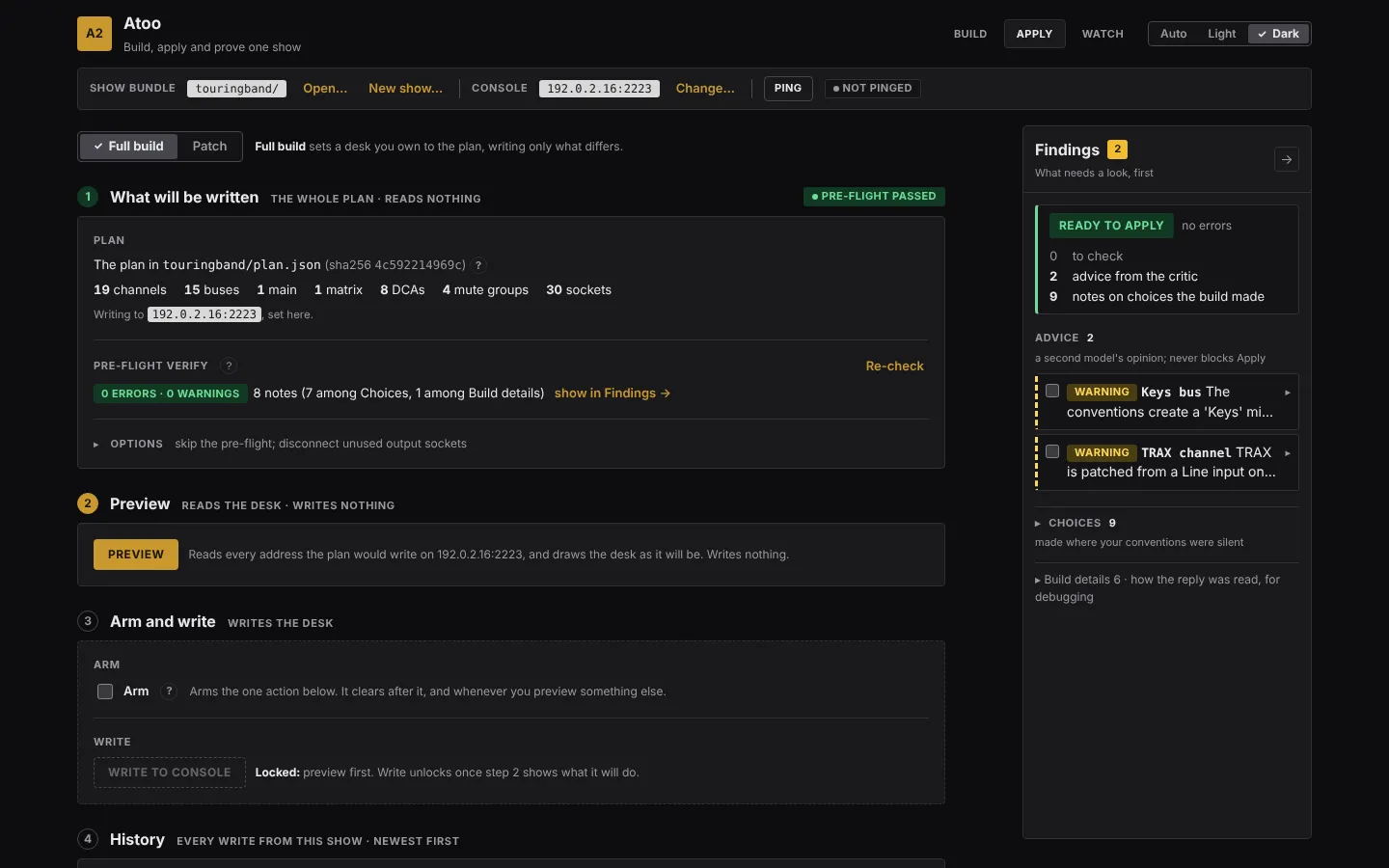
Section titled “2. Step 1: what will be written”Click Apply, and leave Full build chosen. The screen is four numbered steps, done in order: What will be written, Preview, Arm and write and History. (Step 3 reads Arm and undo while an undo is previewed; see Undo the last write.) Each step’s title sits above its box, with a short gray note of what it does (Reads the desk · writes nothing). Its number is gold while it is the next thing to do and green once it is done, and a green tag on the right, such as Pre-flight passed or Read 1667 addresses, says what it found.
Step 1 names the plan, its sha256 and what is in it (channels, aux, buses, mains, matrices, DCAs, mute groups and sockets, each when the plan has any), and the Pre-flight verify line: the plan checked again, against this desk’s model, just before writing, as 0 errors · 0 warnings or a count. Its ? says what it checks. Beside it, the line counts the pre-flight’s own notes by the Findings panel’s two folds, Choices and Build details, which hold the build’s notes too; show in Findings picks them out there.
- An error stops the write. Fix it on Build and rebuild.
- Warnings and notes do not stop it. Read them anyway.
- A plan older than the files it was built from, say an input list you edited after the last build, is said so under the plan’s line (a yellow Stale tag and what changed), in a warning, and in the Findings verdict, which reads Stale instead of Ready to apply. It does not stop the write: apply it as it is if the edit is not meant for the desk, or rebuild on Build step 04 first.
Options holds Initialize the console first and Skip the pre-flight verify. Initialize is a switch, on: it sets the desk to its initialized state before writing the plan, which also disconnects every output the plan does not patch, a stage box’s and a card’s included (what a full apply changes). Not changed: the desk’s network and clock, expansion-card setup, meter and RTA display, monitor and solo listening. Turn it off to add a plan to a show already on the desk: the plan is then written over whatever the desk holds, and what the plan does not set keeps its present value. On a console Atoo has no initialized capture of the switch is off and says why. The line beside Options says which is set.
3. Step 2: Preview
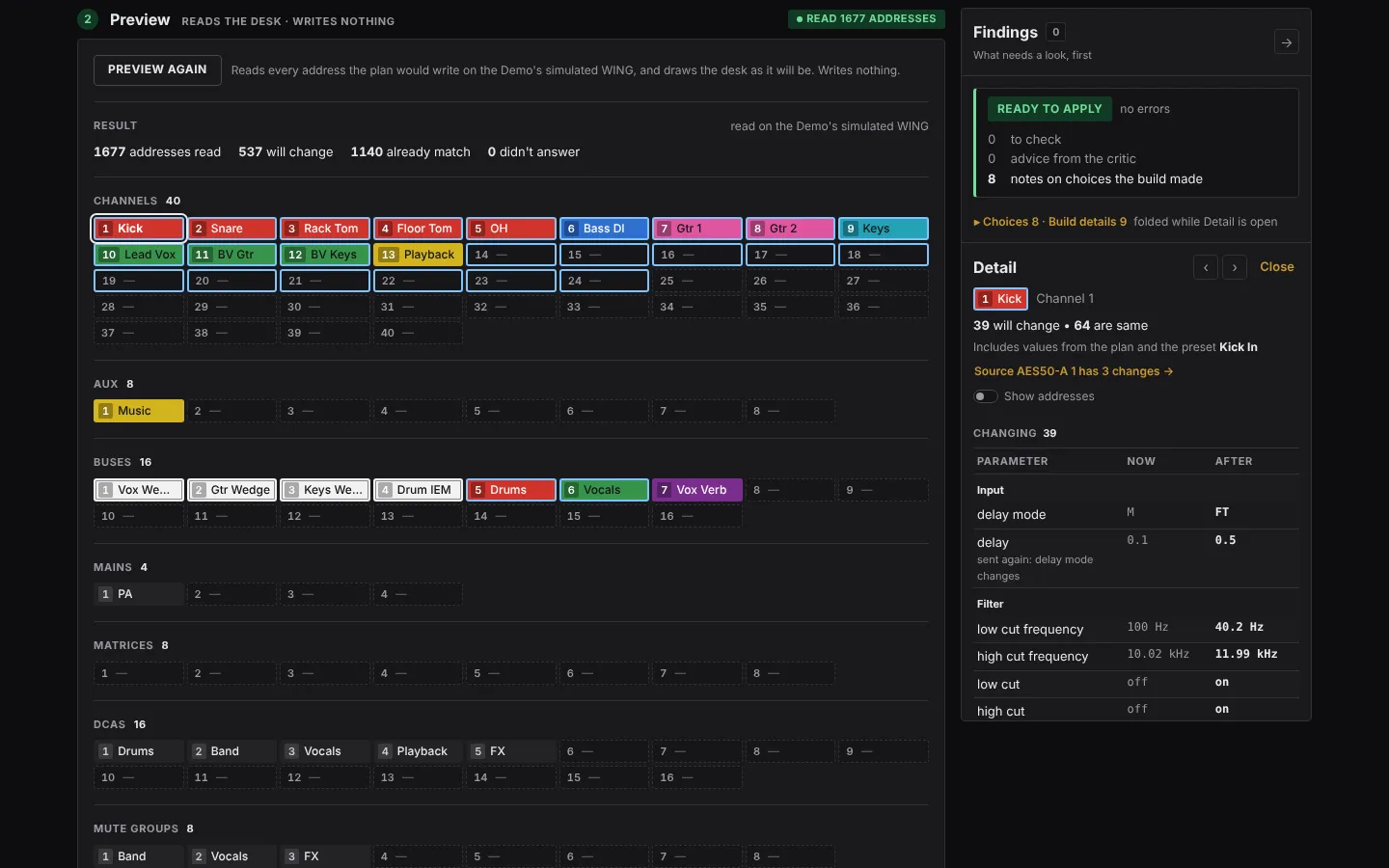
Section titled “3. Step 2: Preview”Press Preview. It reads every address the plan would write, and writes nothing; it needs no arming. (After a rebuild, Apply the difference on Build does this step for you: it opens Apply with Full build chosen and runs the preview.) Step 2 then draws the desk as the plan will leave it, one tile per channel, aux, bus, main, matrix, DCA and mute group, each in its color with its number and name. After those come four more banks, so every address the preview read has a tile: Inputs and Outputs, one tile per socket group (Local, AES50-A, -B and -C, StageConnect, USB, Card, Module, AES/EBU), where a captured show’s splits and recording feeds are listed with the buses and Mains patched there; FX, one tile per effect slot; and Console, for a setting that belongs to no strip, such as talkback. A tile the plan does not use is drawn dark and dashed. A tile the write would change has a blue outline, even a strip the plan does not use (a full build resets its patch). Above the tiles are the counts: addresses read, how many will change, how many already match, and how many did not answer. The tiles’ changes add up to will change.
Click a tile to see its Detail in the side bar. The Findings fold up to their heading and verdict, and one line (for example ▸ Choices 8 · Build details 9) opens them again. Detail names the tile, says how many settings will change and how many are the same, and names the preset its values come from, if any (Includes values from the plan and the preset Kick In). A strip whose source or output socket changes too has a line that jumps to that socket’s group (Source AES50-A 1 has 3 changes →). Then come two lists, under headings in the order the desk’s own screen uses (Strip, Patch, Input, Filter, Gate, EQ, Dynamics, Sends, Mains):
- Changing: each setting with its value now and after. A small note says why a row is written when that is not obvious: sent again: type changes (its selector changes, so the value is written again), not on the desk until model changes (shown with a “now” of —), reset to the initialized desk, or disconnected: nothing in the plan is patched here.
- Not changing: each setting with the value it already holds. A value the desk holds within its own step of the plan’s is listed here, with the plan’s figure beside it: -40 dB (plan -40.5 dB).
The names are plain (“low cut frequency”); Show addresses adds each setting’s OSC address under its name. ‹ and › step through the tiles that change. Click the tile again, press Esc or Close to go back to Findings. On a phone, Detail opens under the bank you tapped, and Not changing starts folded.
The preview keeps no list of every address. To keep a whole preview, run atoo apply --show <folder> --journal preview.json without --confirm: it writes every address it read to that file.
A value “now” can be the desk’s rounded readout. The figure shown for what a setting holds now can be rounded the way the desk displays it: 0.71 where the desk holds 0.70568, 147.8 for 147.836. That is by design, and is how Preview stays quick. Which settings would change is always decided exactly, and the write, its journal and Undo always use the exact value.
Once the preview is current, the button reads Preview again and is no longer the gold one: the next thing to do is step 3. If you change anything in step 1 after a preview, step 2 says the preview is out of date, the button is Preview again, and the write stays locked until you press it.
4. Step 3: Arm and write
Section titled “4. Step 3: Arm and write”- Tick Arm. It is the only arming control in Atoo, and it clears itself after each write.
- Press Write to console.
Until it can be pressed, Write to console has no color and a dashed edge, and Locked: beside it says why: preview first, or tick Arm first. Armed, it turns solid red.
The command’s own output runs under the button as it goes. A full write first puts the desk back to its initialized state, writing only what differs from it; on a WING Compact the read for that took about 35 seconds when reads went one request at a time, and should now be shorter. It reads the plan’s settings from the desk up front, the way the preview does, then goes through the plan, writes only those that differ, and reads every value it wrote back, one at a time. The progress line counts the settings it looks at; when it ends it says how many it wrote.
5. Read the result
Section titled “5. Read the result”The result is in the same step: for example 52 written · 52 read back and confirmed, then Nothing failed to land. The desk now matches the plan. 1715 addresses were already right and left alone. The 52 is the number the preview said would change; if the desk moved after the preview, the write goes by what it reads now. When something did not land, it says how many and names them: each value the desk holds differently from the one written, and each address that could not be read back. The journal under it has every address, with the ones that did not land opened first.
Each confirmed write is recorded in the show’s journals/ folder, and appears at the top of History, step 4, highlighted.
Undo the last write
Section titled “Undo the last write”History lists every write from this show, newest first. The newest write still standing on this desk has Preview undo in its last cell; older rows have no button, and a row written to another desk has only an Other desk tag.
- Press Preview undo. It reads the desk and writes nothing, and it needs no Arm. The page scrolls up to step 2, Preview, which shows the undo preview in place of the write’s (one box, whichever you asked for last), and the button now reads Preview undo again. The preview says which write it would reverse and gives a verdict: green Ready to undo, yellow 1 will stay, or red Can’t undo. Anything that has been changed since the write, by hand or by another run, is listed first under Stays as it is, with the value the desk holds now: Undo leaves it exactly as it is. A control that had no earlier value to go back to is named in an Info note. Goes back lists, strip by strip, each control with the value it has now and the value it goes back to.
- Step 3 now reads Arm and undo. Tick Arm, then press the red Undo newest write, directly under the Undo heading. If some controls had changed since, the undo goes ahead for the rest and the result appears under the button, in yellow: 517 put back, 1 was left as it is.
When the undo lands, step 2 goes back to the write’s box by itself, and its button reads plain Preview again (it reads Preview write only while an undo preview is on show). The Arm tick is cleared, step 3 keeps the undo’s result, and nothing can be written until you preview the write again: press Preview in step 2, and step 3 reads Arm and write once it is ready. To go back to the write before you undo, press Preview write in step 2 instead: the write’s preview returns and the Arm tick is cleared. An undo preview goes out of date, and Undo locks again, when a write or an undo lands, or the console in the bar or the newest row changes: press Preview undo again.
With no row to undo on this desk, Preview undo is locked on the empty History line, with Locked: nothing has been written from this show beside it.
Undo puts back only the addresses that write changed, and only where nothing has written over them since. Undo again to step back one more.
When it does not work
Section titled “When it does not work”- FULL BUILD FAILED, and
apply.failedin the Findings panel: the run log in step 3 is the command’s own output, word for word, and its last line says why. - PREVIEW FAILED, and
preview.failed: the same, for a preview. Nothing was written. Usually the desk did not answer: check its address and that its OSC remote is on. - The pre-flight shows an error about a socket: the plan patches a socket this desk does not have, perhaps because it was built for a different WING. Choose the right Console model on Build step 04 and rebuild.
The command-line version of this page is Applying a plan.
Atoo 0.2.6