
Watch the desk during a show
Someone leaves the lead vocal muted, or pulls the Band DCA to the floor. Watch reads the desk every few seconds and shows what is wrong now, against your own rules and a set of built-in checks.
Watch only reads. Nothing on this screen writes to the desk.
Before you start: the console set in the bar, and Ping answering (Apply a plan). To try it with no desk, use the Demo show.
1. Start
Section titled “1. Start”- Click Watch.
- Leave Every at
2seconds, or raise it on a slow network. - Press Start watching.
With no console in the bar, Start watching is locked, with the reason beside it: Locked: no console. Choose one in the bar. Set one there (or choose Demo) and it unlocks. Beside a chosen Demo, the header’s state reads Demo ready until you press Start.
The header names the console (DEMO RIG, or the desk’s address), its state turns a green Watching with the desk’s name, and the table fills within one reading. While a watch runs, the screen is laid out for a glance from across the stage: the header, then the table, and everything else folded to its title below it.
2. Read the table
Section titled “2. Read the table”You can tell at a glance whether anything needs you. One word heads the table, in large capitals:
- TROUBLE, in red, while any error stands;
- WARNING, in yellow, with warnings and no error;
- ALL OK, in green, with neither. An info is a note, not trouble.
Beside the word is the first thing that is wrong, as the strip, a colon and the claim (CH 10 “Lead Vox”: is muted), and on the right the three counts: errors, warnings and info. A count lights in its color only when it is not zero. Before you press Start the word is a gray NOT WATCHING; until the first reading arrives, STARTING.
While a watch runs, the page is kept clean for the service. The Atoo header (the tabs and the theme switch) and the Show bundle / Console bar are hidden, and the Watch header (with Stop) and the verdict stay pinned at the top of the window, however far you scroll; the table’s column headings stick just below them. Stop (or a lost console, or an error) brings the header and the bar back, so leave Watch with Stop first. On a phone-width window the pinned header is cut to the title, the state, Stop and the two switches, and the rest scrolls away with the page.
A warning row is filled amber, an error row red, each with a thick bar of the same color down its left edge and its severity in a solid tag. The rows are sorted errors first, then warnings, then info, with the newest at the top of each. Here on the Demo show:
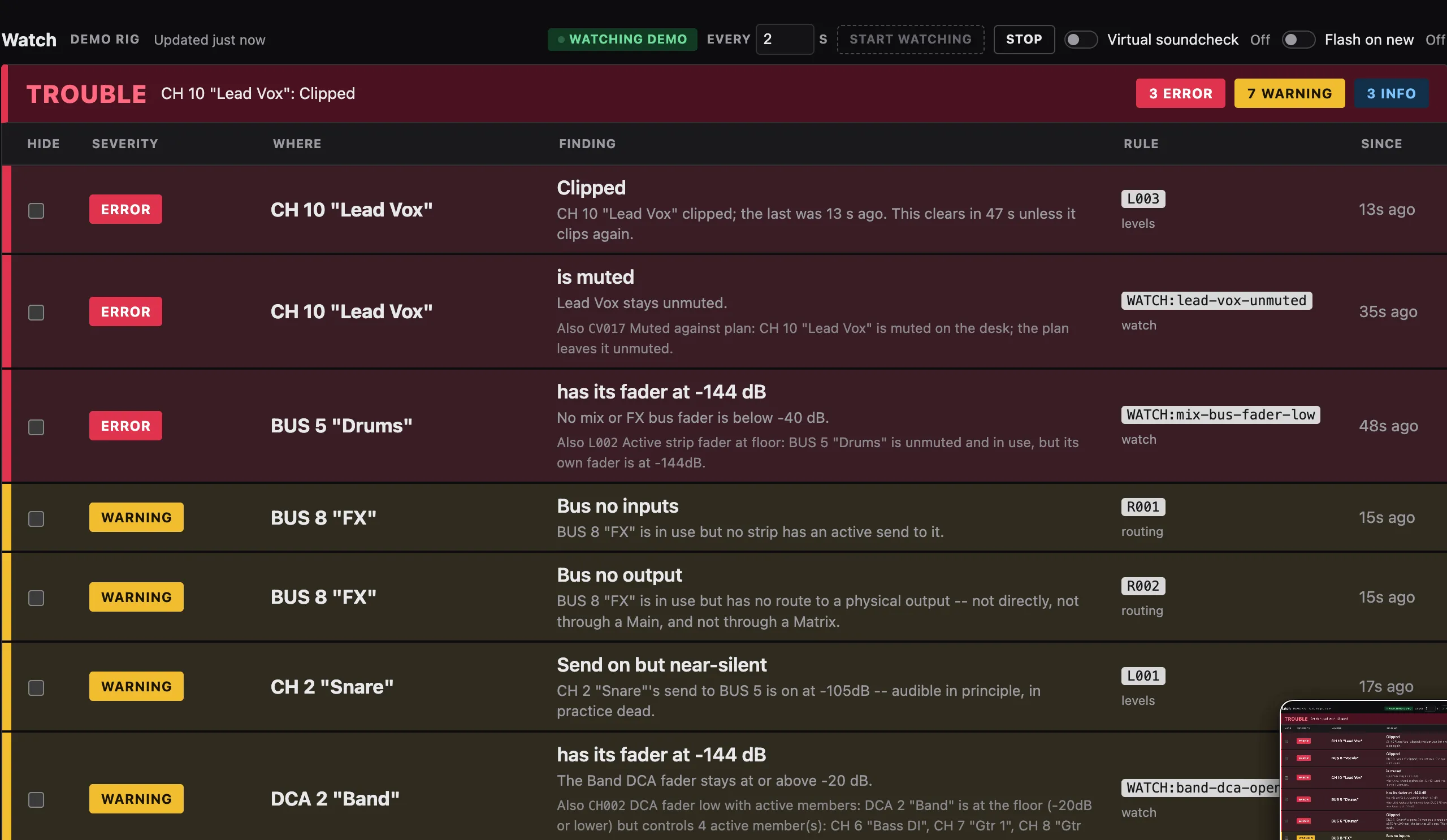
- Where is the strip the row is about, as the desk names it:
CH 10 "Lead Vox". Beside it is the claim, in large type (is muted, or a built-in rule’s name), with the reason under it. Watch writes a built-in rule’s name in sentence case so it reads like your own conditions (Main not patched); the audit and the Findings panel spell it Main Not Patched. - Rules starting
WATCH:are your watch conditions (below). The rules named by a code such asR005are built in. An info row is a note, in quieter type: a screen holding only info still looks calm. - The show’s plan adds eight rules that are warnings and two that are notes. Three are about the desk’s sends and routes: CV006 Bus Send Contradicts Plan (a planned send switched off, or flipped between pre and post; the level is not compared here), CV007 Main Route Contradicts Plan (a channel’s direct Main route the plan lists, off, or one it does not list, on) and CV018 Send Or Route Not In Plan, a note (a send to a Matrix, or a bus’s route to a Main, that is on and that the plan does not have: CH 1 “Kick”: a send to MTX 1 is on at -6dB; the plan has no send from this channel to a Matrix). The others: CV021 Talkback Misses A Monitor Mix (talkback is assigned and reaches something, but not a monitor mix the plan builds, so whoever listens to that mix cannot hear you: not BUS 4 “Drum IEM”; the note CV022 says which busses it took for monitor mixes), CV020 Bus Width Contradicts Plan (a bus mono where the plan has it stereo, or the other way round), CV019 Phantom Contradicts Plan (48V on a socket not what the plan states for the channel patched there: a condenser with it off, or a source that must not have it with it on), CV016 Planned Routes All Off (a channel whose every planned send and Main route is off or at the floor: CH 1 “Kick”: the plan sends it to Drums and Drums Comp; neither send is on), CV017 Muted Against Plan (a channel, bus, DCA, Main or Matrix the plan leaves unmuted, muted on the desk; never the talkback mic), and, when the plan inserts an effect (an FX bus’s bus preset, or what a capture found on any strip), CV015 Effect Insert Contradicts Plan (that insert switched off, the reverb bypassed, or the engine holding another effect). On the Demo, Lead Vox muted shows CV017 folded under the show’s own condition (Also CV017 Muted Against Plan), and the Vox Verb bus is sometimes switched off to show CV015.
- With no show open, or a plan that will not read, Watch has none of those rules, and an INFO under This watch reads: Plan: no plan, plan checks off (
W005; Watching without a plan). - Watch reads the output sockets the plan patches and the outputs of any AES50 stage box on the desk, so monitor busses patched to a stage box are not called unrouted. A Matrix the phones listen to is not “unpatched”.
- One fault, one row. When one of your conditions and a built-in rule catch the same thing (your
DCA Bandfader condition and CH002 both see the Band DCA at the floor), the row is yours, at your severity, with the built-in named under it: Also CH002 DCA fader low with active members. - A row clears itself when the fault is fixed on the desk: the table is the desk as it is now, not a log. To hide one you have already seen, suppress it.
- Updated 12s ago, in the header beside the console’s name, is the time of the last reading. If readings stop arriving while you watch, it turns to a yellow No reading for 45s, the word over the table turns a gray NO READING, and the table grays out. The table then shows how the desk was at that last reading, not how it is now. Check the desk’s network, or Stop and Start again.
- A Coverage line under the verdict names any rule the reading could not check, so a short table is not mistaken for a healthy desk.
A clip
Section titled “A clip”When a channel, aux, bus, main or matrix clips, a red ERROR row, Clipped, appears for it and stays for about a minute after the last clip, then clears by itself. Watch shows no meter and no level: the row is the only sign.
CH 1 “Kick” clipped 3 times; the longest was 0.5 s; the first was 17 s ago and the last 0.9 s ago. This clears in 59 s unless it clips again.
and, for a strip that clipped only once:
CH 1 clipped once, for 1.3 s; that was 2.7 s ago. This clears in 57 s unless it clips again.
- One row per strip, however many sides, words or times it clipped. A clip inside the minute is the same row: it does not flash again, its count goes up and This clears in goes back to 60 s. A clip after the row has cleared is a new row.
- A strip counts as clipped when its input or its output is within half a decibel of full scale (-0.5 dBFS). That is Watch’s reading of “clip”, not the desk’s: if the desk’s own clip light and a row ever disagree, say so.
- The row always says how many times it clipped (once for one). A clip ends once the level has been below the clip level (-0.5 dBFS) for 200 ms, so each snare hit that lights the desk’s clip light is one clip, and a signal flickering at full scale is one clip, not hundreds. A short pause in the meter data does not end a clip; a pause of more than a second does.
- The longest is how long the longest of those clips lasted, from its first clipped reading to its last, dips shorter than 200 ms included, as the desk’s clip light shows them. It is said when the packets are frequent enough to time a clip; otherwise the row gives the count and the times only.
- The first and the last say when the first and the latest clip were, so the time between them never reads as one clip’s length.
- The rows appear within one reading of the clip, so a clip is shown up to a reading after it happens, and cleared up to a reading after the minute is up.
- Watch listens to the desk’s meters on one more connection (port 2222, one of the desk’s 24 client slots) and writes nothing. It asks for every channel, aux, bus, main and matrix in one request and renews it every two seconds. If it cannot, or the connection drops, or the packets stop for three seconds, This watch says Clip detection: off and why (meter data stopped for the last), asks the desk again, and says on again when packets return. The rest of Watch carries on. The meter data comes back to the laptop by UDP, so clip detection needs the laptop on the desk’s own network: over a routed link, such as a VPN, it stays off. On the Demo show the clips are simulated: one strip clips now and then, and one that clips again shows its count rise.
- To check the clip rows against the desk later, record what it sends:
atoo watch --console 192.0.2.148 --record-meters meters.jsonlwrites every meter packet, with its time, tometers.jsonlwhile the watch runs. Nothing more is asked of the desk. Send the file with a report of what the clip light did, and the rows can be replayed exactly.
Below the table, two blocks fold to their title while a watch runs. Click a title (or its Details or Edit) to open it:
- This watch says which console it reads, which strip each named condition found at Start (Resolved at Start: DCA Band → DCA 2, MAIN PA → MAIN 1), and how many findings were already present at the start. A condition that is not watched, because its name matched no strip, shows a warning badge on this line. Clip detection: on, N packets/s (or off, with the reason) is there too.
- Watch conditions is the editor (below).
Both open again when you press Stop. Closing atoo ui stops the watch too.
Virtual soundcheck
Section titled “Virtual soundcheck”A channel on its alternate input (C004) and the desk’s global alternate switch (C005) are warnings, because a show never starts on them. During a virtual soundcheck they are the right setting, and warnings you learn to ignore are worse than none. The Virtual soundcheck switch in the header is for this. Turn it on (it reads On, and a Virtual soundcheck tag appears beside the connection) and those two rules are shown as info, not warnings: every channel on its alternate is still named, each row says Virtual soundcheck is on, so this is expected, and This watch says Virtual soundcheck: on, alternate inputs at INFO.
Turn it off when soundcheck ends and any channel still on its alternate is a warning again by the next reading, a new one, so Flash on new takes it as new. It is yours for this session only: it is off at every Start, is not remembered between watches or on this device, and Stop turns it off. You can set it before pressing Start, or while watching. From the command line it is --virtual-soundcheck.
Flash on new
Section titled “Flash on new”The Flash on new switch in the header is off until you turn it on, and this browser remembers your choice. When it is on, a new warning or error flashes the whole screen once, in its color, for less than half a second. It does not repeat while the fault stands, and an info never flashes. If your computer is set to reduce motion, the screen’s edges glow in that color for a few seconds instead.
Suppress what you have seen
Section titled “Suppress what you have seen”A warning you know about and cannot fix tonight should not take the eye from the next one. Hiding a finding only changes this page; nothing is sent to the desk.
- One finding: tick the box at the far left of its row, under the Hide heading (Space, from the keyboard). The row moves to Suppressed, folded under the table with its count beside the title. Press Open the hidden list to open it, then clear the box on the row to bring that finding back.
- Every warning, or every info: click its count at the head of the table. The count is struck through and reads, for example, 0 Warning (4 hidden). Click it again to show them. Errors cannot be hidden this way, only one at a time: an error is a setting that cannot work.
A hidden finding is left out of the counts (they show what is in the table, with the hidden number beside them), does not change the word over the table, and does not set off Flash on new. The Error and Warning counts take their color only for rows still in the table; the Info count stays blue while any info is hidden by its Hide box (0 Info (3 hidden)), as it is in Suppressed.
A suppression lasts while the same fault stands. If the fault clears and later comes back, it is shown again as a new finding, and flashes if Flash on new is on: a fault that returns may be a new problem. Start clears every suppression; this browser does not keep them.
Save what it found
Section titled “Save what it found”To report a session, or to read it afterwards, have Watch write its findings to a file as it runs:
$ atoo watch --console 192.0.2.16 --findings-log tonight.jsonlEach line of the file is one JSON object, appended and flushed every pass, so Ctrl-C or a crash loses nothing. Running again with the same file adds to it.
header, first: the Atoo version and where it runs from, the console address and what the desk answered (model, firmware), the show’s plan or “no plan”, the watch conditions in force and the start time.pass, one per read: the time, the pass number, what appeared and what cleared since the last pass, the meter and clip status, and anything the desk did not answer, and, when the desk gave them, the raw AES50 words every pass (aes50:statanddevfor each port, for exampleUPDandS32), so a stage box link that flaps between words shows as a timeline. The baseline and every pass that changed something also carryfindings, every finding standing, each asseverity,code(the rule id),message,whereandaddresses, the same words as--review-json.footer, last, when Watch stops cleanly (the count reached, or Ctrl-C). A log with no footer was cut off.
For example, two reads of a desk where a second channel gets the name Vox, then gets its own name back (--state-sequence plays saved states instead of a desk):
$ atoo watch --state-sequence before.json,after.json,before.json --interval 0 --count 3 --findings-log found.jsonl$ python3 -c "import json; [print(l['type'], l.get('pass'), [f['code'] for f in l.get('appeared', [])], [f['code'] for f in l.get('cleared', [])]) for l in map(json.loads, open('found.jsonl'))]"header None [] []pass 0 [] []pass 1 ['N001'] []pass 2 [] ['N001']footer None [] []The file holds only what Watch read: nothing is written to the desk, and no key or password is in it. The console address is the one you typed, so look before you send it to someone. On the Watch page, Save findings under This watch downloads the same lines for the session so far.
Edit the sheets while it runs
Section titled “Edit the sheets while it runs”With a show open, Edit sheets in the header takes the page to Build’s step 04 for that show: its Channels, Busses and Mains and Matrix tables are the show’s input.csv and busses.csv (Editing the sheets). Watch keeps running while you edit, and step 04 shows this at the top: Watch is still running. It reads the sheets on its next pass after Save; go back to Watch to see it. Back to Watch beside it (or Watch in the header) returns to the running watch, its findings as they were.
Watch never writes. After a Save, its next pass reads the saved plan, with no restart, and a line under the header says when:
Read busses.csv at 01:49:03 PM, after its Save at 01:48:52 PM in Build 04: 1 change waits for Apply.-
A role changes what Watch says, not the desk. A split through a bus whose role is
parallelis the note Parallel bus asked for, and through anfxbus Read as effect sends, each quoting the cell (“busses.csv, Bus 2 “Drums Comp”, role: parallel.“). -
Anything else the desk would change for (a name, a socket, a source) waits for Apply, as a WARNING, Sheet differs from desk (
CV023), one per bus or channel. It quotes the cell and names the settings the desk does not have yet:BUS 9 “Presentr”: “busses.csv, Bus 9 “Presentr”, outputs: LCL 1-2; AUX 1-2.” The desk does not have this yet (4 settings: output AUX 1 source; output AUX 1 channel; output AUX 2 source; output AUX 2 channel). Nothing is written until you apply it, or undo the edit.
Open in Apply goes to Apply and runs the full build’s preview, where you arm and write as usual. Show in Build 04 goes to step 04, on the row, opened. Watch keeps running either way. The warning clears on the first pass after the desk has it.
With no show: Make a show from this desk
Section titled “With no show: Make a show from this desk”With no show open, the header offers Make a show from this desk. It is New show… → From a desk on the console in the bar, the one Watch is reading (Capturing a desk). Watch keeps running, and once the show is written, a line under the header confirms it, and Watch takes the new show’s plan on its next pass: the Watching without a plan note goes, and a split the desk is built with, such as a reverb bus, is a note instead of a warning. A socket only the plan names is read once you stop and start.
3. Say what matters tonight: watch conditions
Section titled “3. Say what matters tonight: watch conditions”The Watch conditions panel holds this show’s own rules, saved in its watch.json. It is open when no watch is running; during one, click its line under the table to open it.
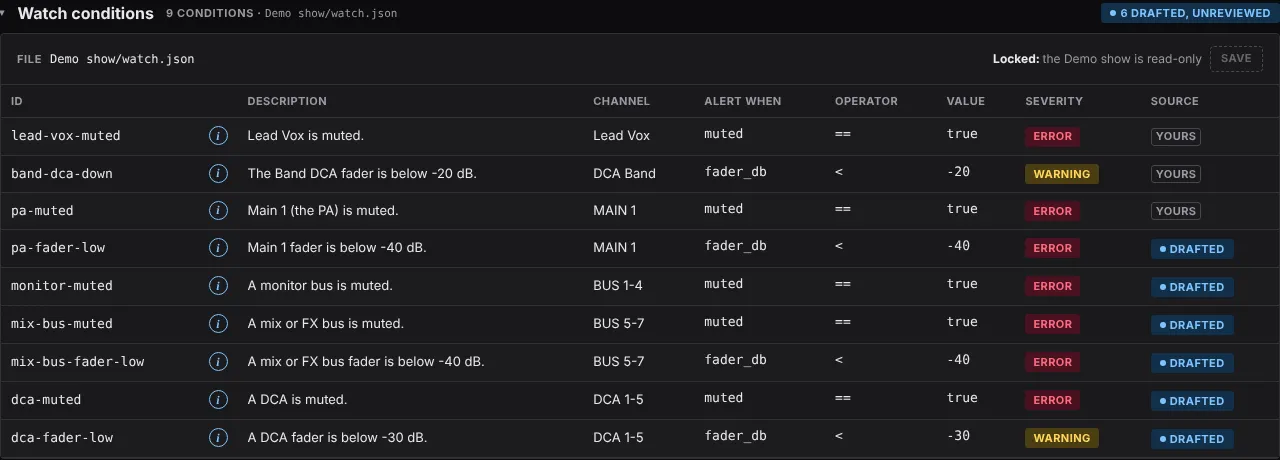
Each row is one check on one channel, bus or DCA:
| Channel | Alert when | Operator | Value | Severity |
|---|---|---|---|---|
Lead Vox |
muted |
== |
true |
error |
Playback |
fader_db |
<= |
-60 |
warning |
DCA Band |
fader_db |
< |
-20 |
warning |
MAIN PA |
muted |
== |
true |
error |
ACTIVE ALL BUS |
muted |
== |
true |
error |
A row says when to alert: it fires while it is true. The word ACTIVE in the Channel cell checks only the strips that are active: on this show’s sheets, or in use on the desk. The last row alerts on a muted bus the show uses, not on a spare one (Only active strips). Alert when is the field, one of muted, fader_db, dca, mute_group, patch, send_on, send_db, send_mode or phantom. The three send_ fields are about a channel’s send to a bus, and show a Bus box under the field cell (to bus: BUS 5-8, or a name): write the bus the way you write a channel, and it is rewritten to its one spelling when you leave the box (Sends and 48V). dca and mute_group take not in or in (not in alerts when the channel is not in the group); the levels take every comparison, and the rest == and !=. Give each row an ID and a Description: the description is what the table shows when it fires, so write what is wrong, “Playback is pulled down.” A watch.json written before conditions said when to alert has no "version": 2, and the panel refuses it with a command that converts it (The file starts with “version”: 2).
The small i beside each ID says what the row does, in plain English. Hover it, press it, or tab to it and press Enter; Escape closes it. A row that is fader_db < -40 on CH 1 reads “Alerts as an error when CH 1 has its fader below -40 dB.” and then says how the alert will name the strip: by its number and its console name, such as CH 1 "Kick". The sentence is written from the row’s own cells, not from your description, so it is a check that the row says what you meant. It follows the row as you edit it; a row with a refused cell has no sentence until the cell is fixed. The i works on the read-only Demo show too, and its press area is larger than the icon, so it is easy to tap on a phone.
- Press + Add condition, fill in the row, and press Save. Save appears once there is something to save, beside an Unsaved changes tag.
- A watch that is running uses it from its next reading. No restart.
Source says who wrote each row. A build drafts a starting set, marked Drafted in blue, and the block’s title counts them (6 drafted, unreviewed); edit one, or press its Drafted tag, and it becomes Yours. A drafted row you delete is not added back by the next build.
On the read-only Demo show the conditions are text: there is no Change file or + Add condition, and Save is locked with Locked: the Demo show is read-only.
Your own alerts: watch conditions has the full reference: matching by position, range or name, and only active strips.
When it does not work
Section titled “When it does not work”- This watch says Clip detection: off. The desk’s metering connection could not be opened (it uses one of its 24 client slots), no meter data arrived, the meter data stopped, or the connection dropped. Nothing else is affected. Meter data stopped clears by itself when the desk starts sending again. No meter data means the desk’s UDP meter packets are not reaching this computer: a firewall, or a laptop that reaches the desk through a router or VPN (a Tailscale subnet router, say) rather than on the desk’s own network. Put the laptop on that network. Stop and Start watching to try again.
- The header reads a red Error, with the reason under the word over the table: check the address with Ping, and see Troubleshooting.
- A condition never fires: its Channel must match a name on the desk. A kind and a name (
DCA Band) that matched nothing shows as not watched on the This watch line under the table. A Main or Matrix name is read once, at Start: press Stop and Start watching after renaming one.
The command-line version is atoo watch.
Atoo 0.2.6